Table of Contents
Areas Window
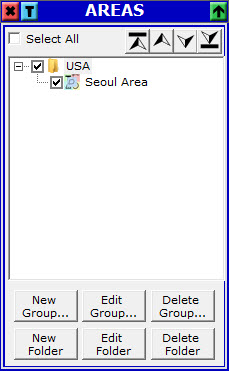 The Areas Window is displayed above. All the areas are filed like this:
There are Folders containing Area Groups. Each Folder can contain one or more Area Groups and each Area Group can contain one or more Areas of any type. In this window you can create, edit or delete Folders (if you delete them you delete the Area Groups that they contain) and you can create, edit or delete Area Groups (all the Areas contained in an Areas Group will be deleted if the Group itself is deleted). You can also drag and drop Area Groups from one Folder to another.
The visibility of an Area is affected by the visibility of the Area Group it belongs to and the visibility of the Folder the Group belongs to. This is changed by clicking on the check boxes in front of every element.
In this window you can use the check box on top to select all Folders (if a Folder is highlighted) or all Area Groups in a Folder (if an Area Group is highlighted). In similar way, you can move Folders or Area Groups Up or Down (or to Top or Bottom) using the appropriate buttons.
By pressing New Group or Edit Group the following window pops up.
Area Groups
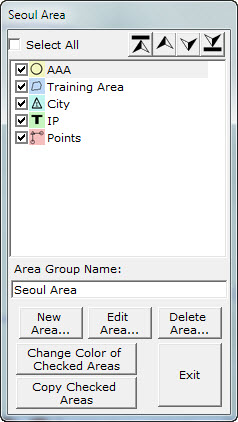
Here we can see the actual Areas that form the Group. Each Area has an icon representing the type of the Area. The possible types of an Area are:
- Region
- Circle
- Icon
- Text
- Flight Plan
Here you can Add, Edit or Delete an Area, or change its visibility by clicking the check box in front of it. You can change the visibility of all Areas by using the Select all check box and change the order of the Areas with the appropriate buttons.
You can change the name of the Area Group and select the Change Color of Checked Areas to, well.., to change the color of checked Areas! Additionally, you can copy the checked Areas to another Area Group by pressing the corresponding button.
By pressing New Area or Edit Area you get one of the following windows.
Region
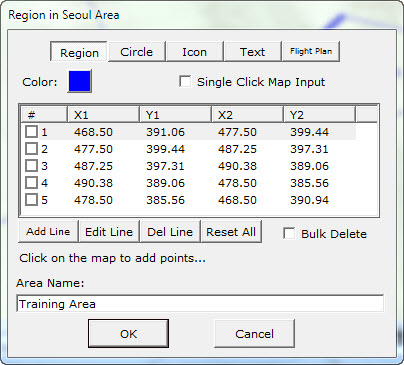
This is a list with lines, starting and ending points, that all together forms the Area. You can click on the Map to add points to the list. You need two clicks for one line, unless the Single Click Map Input is checked, so the first point of the new line is the last po.int of the previous one.
You can manually Edit, Add or Delete points or Reset all (delete all lines). There is a Bulk Delete function that lets you delete all checked lines. The check box in front of any line doesn't have anything to do with visibility. The check box is there only for the bulk delete function.
You can also change the name and the color of the whole area.
Circle
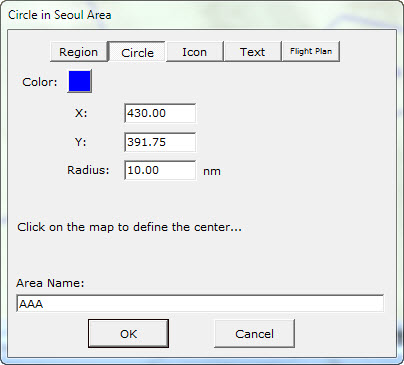
You can manually fill in the X and Y coordinates, or click on the Map to define them. You must fill in the radius (in nm) and the name of the Area. You can also change the color using the button on top.
Icon
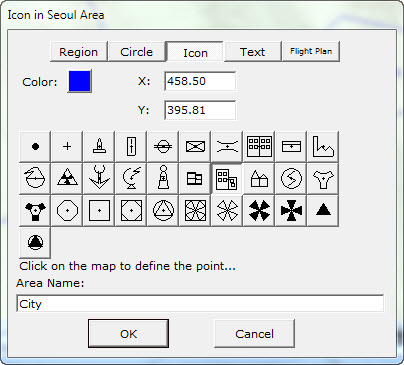 As in previous pages, you can click on the Map to define the point. Select an icon from the panel, the color and the name of the Area and hit
 Ok.
Text
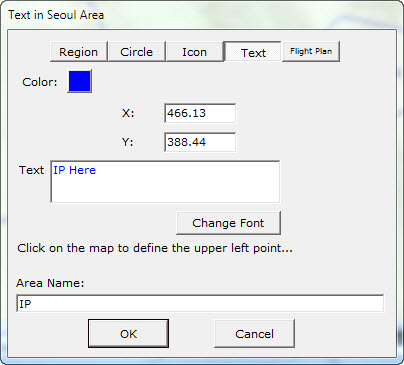 Here you have the Text Box and the
 Change Font button additionally.
Flight Plan
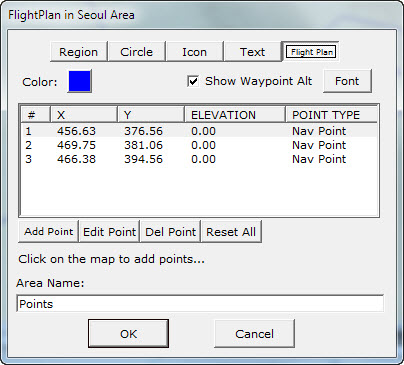
Here you can enter a Flight Plan. The points can be added by clicking on the map, but they have to be edited manually to enter an Altitude and to change the type. Available types of the points are:
- Nav point (circle).
- IP point (rectangle).
- Target point (triangle).
You can select whether for the specific Area, the Altitude is visible, by selecting the Show Waypoint Alt. check box and also, the font for the altitude (again Area specific). As usual, you can change the name and color of the Area by using the corresponding controls.