Table of Contents
Freq Window
The purpose of this window is to have a list of frequencies that players are using in game (with IVC), to give an interface for IVC to change frequencies easily and finally to load a list of Airport TACANs and ILSs.
All the values of frequencies are automatically tried to be recognized as UHF or VHF (or ILS). This results with the corresponding icon in front of it. If a frequency fails to pass the restriction as either UHF or VHF (or ILS) it gets an icon with a question mark (?). By double clicking on a recognized U or V frequency, the program will tune it to the corresponding IVC radio (U or V), if IVC is running and connected. If the frequency is not recognized as U or V nothing will happen.
You can manually tune a frequency not recognized by right clicking on it and select the appropriate radio.
Custom Channels
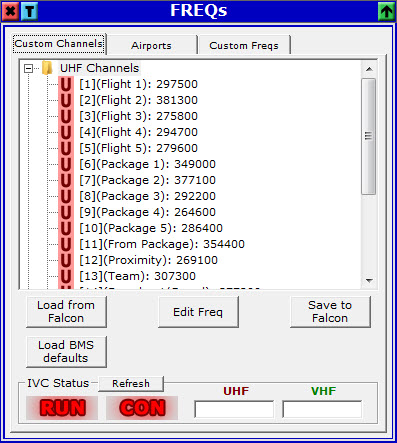 Here you get the default channels that BMS has (with the default names). You can change the frequency values, load from a Falcon BMS setup (selecting the appropriate callsign) or load the default BMS channels. You can also save your list to a Falcon BMS setup (again choosing the callsign). Be careful as you might loose some AI calls, or be unable to communicate with other players online if you have different frequencies in your channels (see BMS documentation on that).
Airports
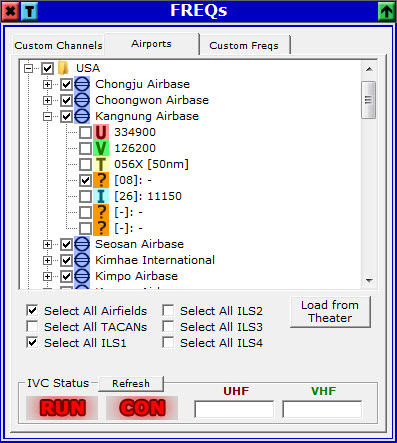 You can load from Falcon a list of all the Airfields with TACAN, frequency and ILS information. If you press
 Load from Theater a window to select an installed Falcon BMS theater will pop up and then you will be asked to open a tac/cam/trn file.
The list will be populated with all the airfields contained in Station+ILS.dat. Selecting a check box on the list, if it is an airfield, it will make all the selected sub items visible on the map. If the check box belongs to a team name, will make all the airfields under the team either selected or not (depending on the state of the check box you clicked).
Clicking on the check boxes below will select or not select the appropriate items.
Custom Freqs
 Here you can have a list of custom frequencies along with a description, arranged in folders. You can use the controls at the bottom to add, delete or edit a folder or a frequency. Also you can move frequencies and folders up or down. Drag and dropping also works fro frequencies and not for folders.
IVC Interface
 This portion of the window will give you the status of IVC Client software. The first indicator will get green if IVC Client is running, while the second one when IVC Client is connected to a server. The two text boxes will display the frequencies that IVC Client is currently tuned to.
This display is not always accurate. Hit Refresh button to refresh the display. It is automatically refreshed when trying to transmit or when trying to tune an IVC radio.
This will work only if IVC Client is in manual mode. So if you run Falcon BMS as well and you are connecting to a server, uncheck the IVC support from the connection settings. If for any reason, IVC Client is not in manual mode and it's bound to Falcon, try to check the Force local control check box.