Table of Contents
Menus
This is a reference for the menus that exist on the Main Window.
File Menu
Import Areas
Opens a dialog to import an *.axp file, with areas.
Export Visible Areas
Opens a dialog to save a *.axp file with all the areas that are visible at the time. The folder and Category structure of the areas are maintained (see Areas Window for details).
Exit
Exits the application.
Connection
Connect To...
Opens a dialog in which you can enter a custom IP of SQSERVER to connect to. If you choose to connect to this IP, it will be saved in your phonebook.
Connection Port...
Opens a dialog where you can change the connection port of the program. If you were connected to SQSERVER at the time, you will be disconnected. SQSERVER needs to have the same port saved at it's settings.
Disconnect
This menu is only available when already connected to SQSERVER and disconnects you.
Phonebook
This is a shortcut of saved connection IPs. You have the following sub-menus:
Edit...
Here you can edit your phonebook entries.
<Phonebook entries list>
It's a list of all your phonebook entries (or empty if there is none) and when you select one of it, you automatically connect to the saved IP. If you are already connected when you select it, you will be disconnected from your current connection and then connect to the new one.
Theaters
Here you can modify the installed theaters.
Modify Theaters...
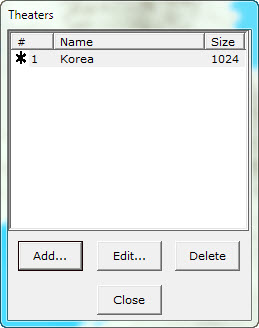
The above dialog shows up, allowing you to modify the installed theaters and add new ones. The current theater is identified by a “*” sign in front of it. You can delete any theater, except the current one. Pressing Edit… or Add…, a new window appears that lets you edit or add new data for a new theater.
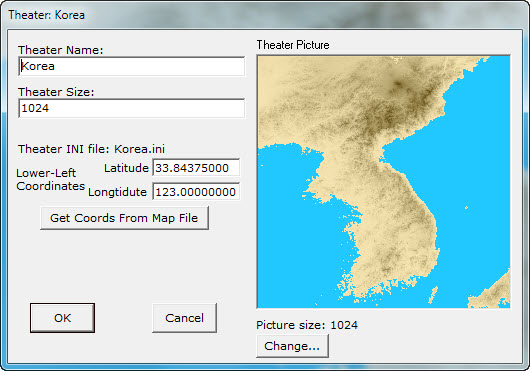
Here you can edit the Theater name, size and starting coordinates. If you're not sure about the coordinates you can get them from theater.map file located in your Falcon Theater's terrain files. Moreover, you can change the picture of the map to (almost) anything you like. The difference for the Add action is that this dialog has an entry for a default bullseye.
<Theater list>
By selecting one element of the theater list, the selected theater becomes active.
Bullseyes
This menu allows access to the saved bullseyes. Each theater have it's own bullseyes.
Modify Bullseyes...
A dialog, similar to the above for the theaters is displayed, allowing you to add, delete or edit bullseyes from the list. You can't delete the current bullseye.
<Bullseyes List>
By selecting an element of the bullseyes list, the selected bullseye becomes active.
Screen
Show...
You have the options to show or hide specific windows, or show/hide all of them at once.
Reset Floating Windows Position
Resets the position of all floating windows. Also, it collapses all of them.
Reset Floating Windows Transparency
Resets the transparency of all floating windows to the selected value.
Reset Zoom and Screen Center
I don't think I have to explain this, right?
Recording
You can start and stop the recording process from these menus.
Tools/Falcon Tools
There are several tools that helps you import data from a BMS Falcon installation.
Import New Theater
Take a look at Import New Theater Window
Import Objectives
Take a look at Import Objectives Window
Get Bullseye from tac/cam/trn
Opens a dialog that lets you select a tac/cam/trn file to import the stored bullseye.
Import Areas from Falcon INI files
Opens a dialog that lets you select a mission ini file (what is created when the DTC is saved). The areas that are stored in it (steerpoints, Lines and PPTs) will be stored in your Areas.