Table of Contents
Import New Theater Window
The purpose of this tool is to import a Falcon BMS theater into F4AWACS. Importing a theater this way, creates the elevation file as well, so the elevation under your mouse can be displayed, while moving the mouse over the map. The first screen is the Theater Selection Window, where you must select a theater.
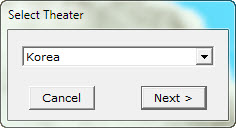
The theaters displayed here are the ones installed in your BMS setup. No option is given at the moment to import a custom theater.
On the next window you have two option. To create a map with Multi Colors or Two Colors.
Multi Colors
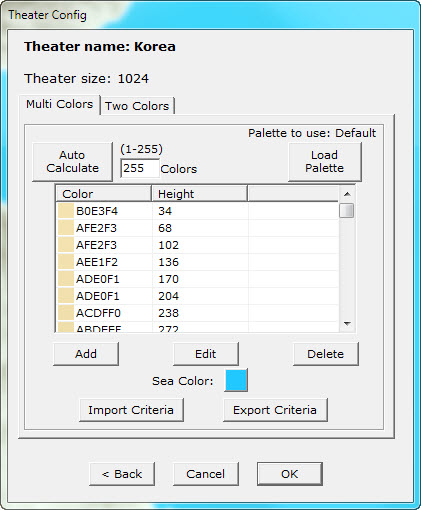
The objective here is simple. You give some criteria (up to 255), an elevation and a color, specifying that under this elevation, the pixels will be colored to the specified color.
You can either add manually the criteria, or specify the criteria number and the palette to use (you can leave the default palette) and press the Auto Calculate. This finds the maximum elevation of the theater, divides that with the criteria number and adds criteria, putting equal elevation intervals and taking a corresponding color from the palette. The first color in your palette is always the sea color, while, the auto calculation method, takes every nth color from the palette to add it to criteria (depending on the number of criteria defined).
So if you define only two colors for criteria to auto calculate, the first one will be (<elv_max>/2, <middle of Palette>) and (<elv_max>,<last color of palette>). The more colors you specify the best the result.
Two Colors
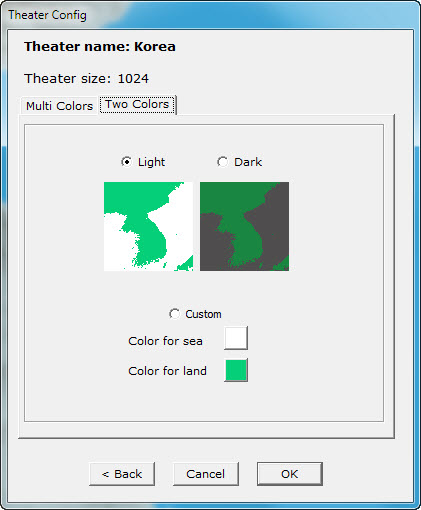
You can select from Light, Dark or custom profile where you can specify the two colors to be used.


