Table of Contents
Main Window
Map Display
Most of the main window is the map were the real and AI plots are displayed. By middle clicking on the map, you recenter the map to the point you clicked.
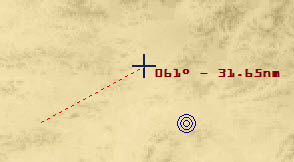 By left clicking you set the start of the cursor and by holding the mouse and dragging, you extend the cursor to get a bearing and range from one point to another. If Static Cursor is enabled (in the Cursor Window) you don't have to keep the right mouse down to get the cursor. The current Bullseye is also present in the picture.
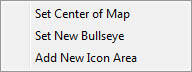 By right clicking you get a menu as seen on the picture on the left, giving you the options to recenter the view, create a Bullseye on the point or insert a point area.
Using the mouse wheel, you can zoom in and out the map.
The plot display is different for AI and Real Player plots. Here you can see the difference:
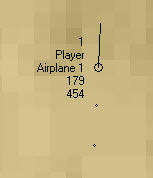
This is a plot of a Real Player (through Validator). Color and other settings can be adjusted in the Clients Window. The info displayed by row is as follows:
- Connection Index (a unique number).
ValidatorCallsign.- Custom Callsign (can be changed by GCI).
- Altitude in 100s of feet (same as Flight Level is displayed).
- Speed in knots (ground speed).
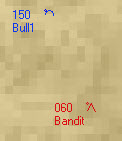
These are two AI plots. The blue one is identified as friend and the red one as Hostile. The identification process can be automatic or manual (as defined in Clients Window and Options Window). The lines of text are:
- Altitude in 100s of feet (same as Flight Level is displayed).
- Name of the AI.
AI plots are not accurate, nor is the ID process. You must not rely on auto ID to call a Hostile contact. If in doubt proceed with VID.
Status Panel
 This consists from the following status lights:
Activity Indicator: Will light up whenever data is sent or received from/to SQSERVER.
Radio Activity: Will light up whenever you transmit on UHF (U), VHF (V) or GUARD (G) radio by pressing the corresponding button. If the color is orange, the button is pressed but IVC is not running or connected to IVC server. In case of success, the color will be green.
Connection Indicator: Will light up green if you're connected to SQSERVER.
Recording Indicator: Will light up green if you're recording the session.
Position Panel
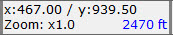 In this panel, the cursor's position in X and Y is displayed. Additionally, the current zoom level and the elevation of the point the cursor is over is displayed as well. In order for the elevation to be displayed, the theater must be created by the
 Import Falcon Theater method described in Menus.
Coordinates Panel
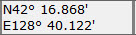 This panel displays the coordinates of your cursor. These coordinates correspond exactly in the Falcon world.
Floating Windows Control Panel
 These are push buttons that display or hide the corresponding floating windows. An alternative method is to do this through the menus.


