Table of Contents
Options Window
The Options Window has four pages that control several options of the program.
Options 1
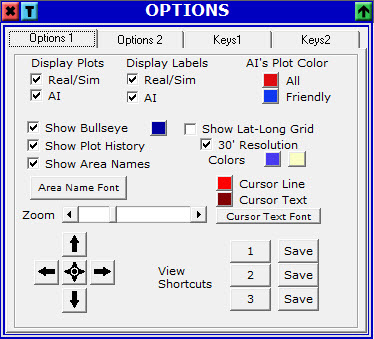 Here you can:
- Display or Hide Real players plots and/or labels.
- Display or Hide AI plots and/or labels.
- Change the default color of Friend and Hostile (all other) AI plots.
- Display or Hide the Bullseye and change it's color.
- Display or Hide plot history points for all plots.
- Display or Hide the names of Areas and change the font if displayed.
- Display or Hide a Lat-Long Grid over the map, include or exclude additional lines for 30' and change the colors of both.
- Change the colors for the cursor and the cursor text on the map and the cursor text font as well.
- Change the zoom of the map by scrolling the scrollbar.
- Move the map Up, Down, Left and Right, or recenter it to the middle by pushing the appropriate buttons.
- Save or restore one of the three View Shortcuts. Restoring a View Shortcuts will take you to the map center and zoom that you had when you saved it. There is a keyboard shortcut for this as well (see below).
Options 2
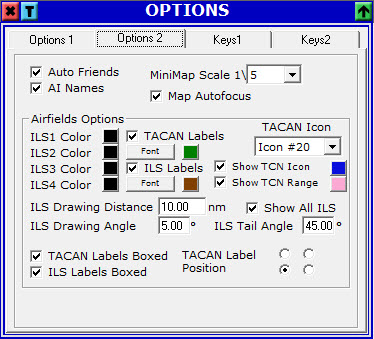 Here you can:
- Select if AutoFriend (or Auto ID) function is enabled. When this function is enabled, all AI plots with names that are starting with the values stored in
FriendlyNames.ini(located in program's folder) will be Friends. - Display or Hide the names of AI plots from their label.
- Change the scale of Minimap Window.
- Specify if the map window will have an autofocus property. That is, when you move your mouse over the map, it will get the focus. This is useful for keyboard shortcuts, but can be a little annoying.
The Airfields Options refer to the data displayed by the Freq Window. You can:
- Change the color for specific ILS drawings (ILS1 to ILS4).
- Display or Hide the labels of TACANs, specify the color, font, whether it's contained in a box and the position in relation to the TACAN.
- Display or Hide the labels of ILSs, specify the color, font and whether it's contained in a box.
- Display or Hide the TACANs, specify the icon used for it and the color.
- Display or Hide the ranges of TACANs and specify the color.
- The distance of ILS drawings, the front angle (0° to 180°) and the tail angle (0° to 90°).
- Whether to display all ILS or only those which actually have an IlS frequency.
Keys 1 and Keys 2
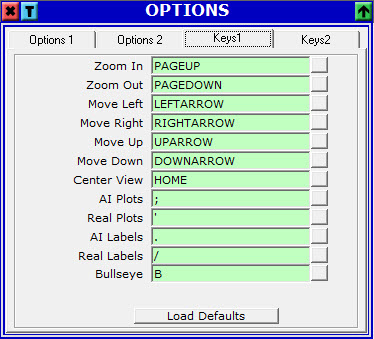
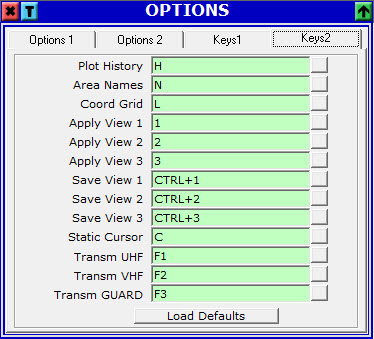
Here you can change the default keybindings for various functions. To change a key, press the little button to the right and press the new keys inside the text box. Any combination of Control, Shift and Alt with a key will be valid as well. If you define the same keys that another function has, the other function will be cleared and the keys you defined will be assigned to the currnt function, so make sure nothing is cleared on both pages after you define a key.
To cancel the process and clear the function's key binding, press the Escape key.
For all the keys to work, the Map Window must have the focus. Exceptions are the three transmit keys (U, V and Guard) that are global (even global in windows).
Pressing Load Defaults on any tab, will result to all the keys to be replaced by the default ones (on both tabs).


